

videocoach

Professional video analysis. Surprisingly intuitive.

videocoach turns match footage into a structured analysis workspace: tag scenes, apply categories, identify patterns and present professional clips for any sport.

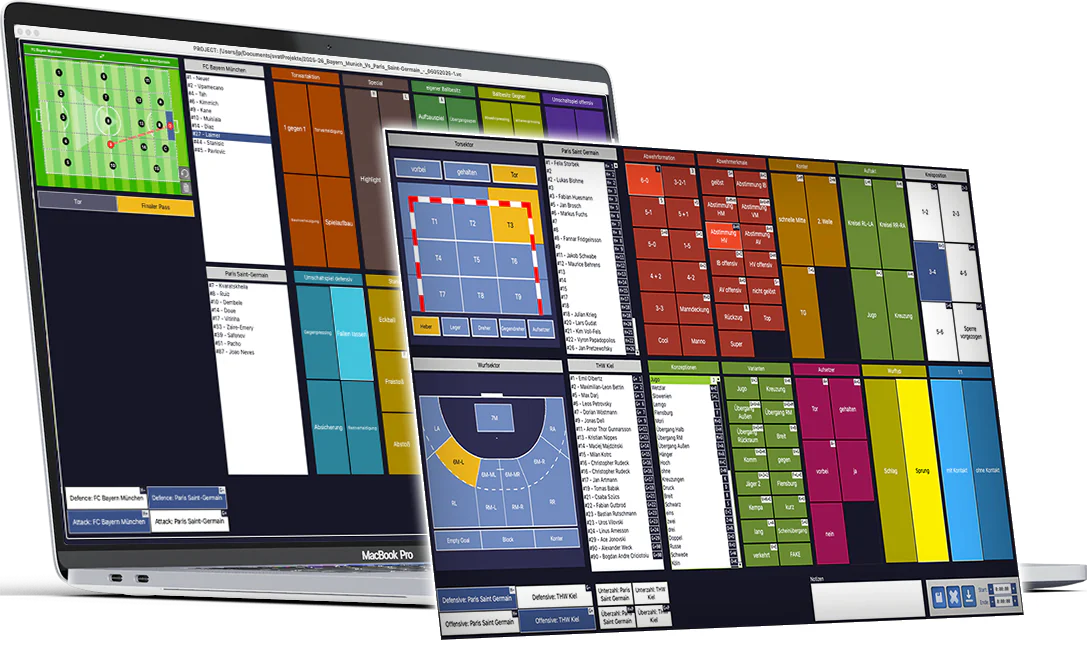
videocoach tagging interfaces for different sports

Tagging

One key. One scene. Instantly categorized.

videocoach brings video, timeline and category system into one focused workspace. Coaches and analysts mark relevant moments at the speed of the game.

Find faster

Move through video in custom steps and review moments frame by frame.

Your system

Create categories for game model, opponent analysis, individual feedback or sport-specific patterns.

Ready to analyze

Every tag becomes a searchable scene for filters, clip collections, presentations and export.

Core benefits

Video analysis built for everyday team workflows.

The software stays flexible across sports and clear enough for quick decisions within the coaching staff.

Find scenes faster

Jump directly to relevant match situations instead of searching through full videos.

Tag with your own system

Create categories for your game model, opposition analysis, individual feedback or sport-specific patterns.

Analyse without detours

Filter tags, compare scenes and prepare insights for training sessions and match day.

Present clips

Create presentation-ready clips and share your analysis with the team, players or coaching staff.

Workflow

Workflow-based video analysis in three steps.

videocoach provides a focused interface for each step, keeping your work clearly structured from the first tag to the finished analysis video.

01

1. Tagging

Mark and categorise every relevant match situation in one or more videos.

02

2. Analysis

Filter, sort and analyse scenes using your individual categories.

03

3. Presentation

Add drawings, replays, slow motion and titles, then export the finished video.

Tagging features

Tag quickly. Categorise clearly.

Find relevant scenes at the speed of the game and organise them immediately.

Fast Video Navigation

Efficient tagging depends on fast navigation through the video. The videocoach video player is built specifically for game analysis and offers freely configurable time jumps, variable playback speeds from frame-by-frame to 8x, and full keyboard control. This helps you reach relevant scenes quickly and save valuable time during tagging.

Intuitive Marking

Marking a relevant scene - known as tagging - feels intuitive in videocoach. You can set the start and end point of a scene during playback with a keystroke or mouse click, or define both boundaries with a single shortcut. Pre-roll and post-roll times can be configured for three different scenarios, such as short, medium and long scenes. Afterwards, you can assign categories in the ergonomic grid view and add a free-text note.

Custom Categorization

Comprehensive and efficient analysis starts with categorizing your marked scenes during tagging. videocoach provides a unique, scientifically grounded and optimized two-level category system. You can define as many main and subcategories as needed for the aspects of the game you want to analyze. Each category can optionally be assigned its own keyboard shortcut. Your category system can also be exported and shared within your coaching staff or club.

Analysis features

Turn tagged scenes into insights.

Filter, statistics and export in one focused analysis workspace.

Dedicated Analysis Interface

For evaluating your marked scenes, videocoach provides a dedicated and intuitive analysis interface. Its core elements are a separate video player, a filter panel and a results table. Whether you want to quickly sort scenes chronologically or filter them in detail by specific attributes, videocoach gives you focused, intuitive and time-saving tools for the job.

Filtering and Sorting

Your analysis is based on all scenes marked during tagging and their categories. With the filter panel, you can filter scenes by individual categories such as goal or by combinations such as transition, counterattack and goal. Filtered scenes can be reviewed directly in the video player, analyzed further in the table view, sorted chronologically or by category, and arranged in a custom order for your analysis video.

Dynamic Statistics

When evaluating one or multiple analyses, videocoach gives you dynamic statistics for the current filter query. The resulting values are shown in real time directly in the filter panel, helping you continue your analysis, refine filters and export statistics as a PDF with one click.

Automated Video Compilation

If you want to create individual videos for players or the next opponent, videocoach can automate filtering, labeling and compilation. You select the team to analyze and the relevant categories, and videocoach creates the matching clips including slow motion, replays and player information.

Quick Video Export

When time matters or you only want to cut selected scenes into a separate video, you can use Quick Video Export. From the analysis interface, your current filtered and sorted scene selection can be exported as a new video with one click.

Excel Export

If your analysis should include quantitative data in addition to qualitative video scenes, you can export all scenes and attributes or the current filtered selection as an XLS file. The file can be opened directly in Microsoft Excel or LibreOffice and used for further statistical evaluation.

Multi-Video Analysis

For comprehensive analysis across multiple games, you can evaluate all tagged matches together in one project. All videocoach analysis functions are also available for multi-video analysis.

Presentation features

Present analysis clearly.

Drawings, replays and titles turn clips into clear messages.

Minimal Settings - Maximum Impact

Just like tagging and analysis, videocoach provides a dedicated interface for video editing. The workflow covers video compilation, effects and menu editing, and the final export. With a small set of clear options and only a few clicks, you can create high-quality analysis videos, add drawings and text, automatically display key scene information and generate professional title screens with your club logo.

Intuitive Drawing Mode

Enhance your marked scenes with as many graphical elements as needed. Labels, lines, arrows, shapes and freehand drawings in different colors help you make the decisive aspects of a scene visible. The drawing mode can be activated for any marked scene with one click, allowing you to sketch runs, open spaces or tactical patterns directly in the video. All drawings are automatically included when exporting the new video.

Automatic Information Overlays

Important contextual information can make video analysis easier to understand. videocoach can automatically integrate this information into your video compilation. You decide which details should be displayed for all scenes: individual notes, assigned attributes, the scene time in the video, continuous numbering, and titles or subtitles of your video chapters.

Effects and Menu Editing

videocoach gives you options to create a professional analysis video in just a few steps. You can divide your video into chapters with titles and subtitles, automatically add replays or slow motion, and design title screens with an individual background such as your club logo. Between scenes, additional graphics or messages can be displayed, for example in blended-learning workflows.